
AutoCAD
INSTALLATION & ACTIVATION GUIDE
AutoCAD
Follow the installation steps, then complete the activation method for your purchased product.

Submit your Autodesk account
Open the Autodesk activation link for your paid order. If you do not have an Autodesk account, register first. Submit the email you use to sign in, then check the ordered app and subscription term.
Wait for authorization
Your customer page shows the activation request status. During business hours on working days, activation is usually completed within 5–10 minutes. Once marked authorized, sign in with the same email and follow the installation steps below.

Autodesk AutoCAD
Log in to the Autodesk website to install the software.
Step 1: Sign In to Autodesk
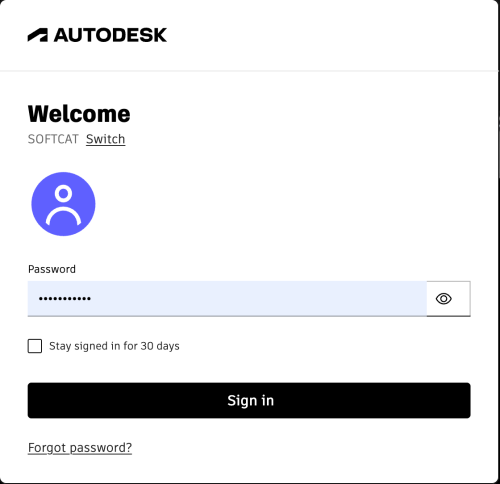
Go to the official Autodesk and log in
1. Enter Credentials
Enter your Email Address and Password to sign in.
Note: Please log in using the email address you provided. If you have forgotten your password, please click “Forgot password?” to retrieve it.
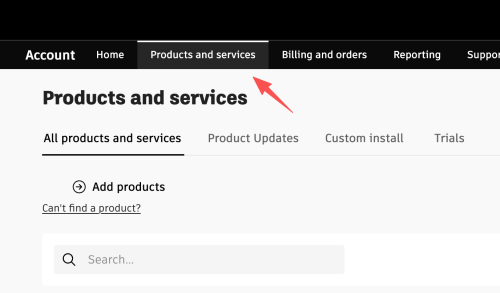
Step 2: Check Products and services
1. In the menu bar
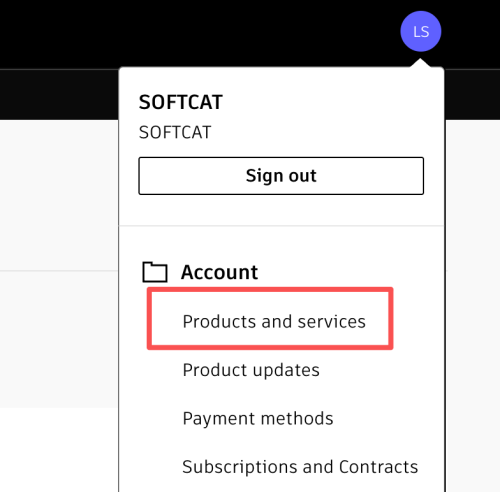
2. In the profile picture
Step 3: Install Your Products
Go to “Products and Services”
View licensed software and install to use
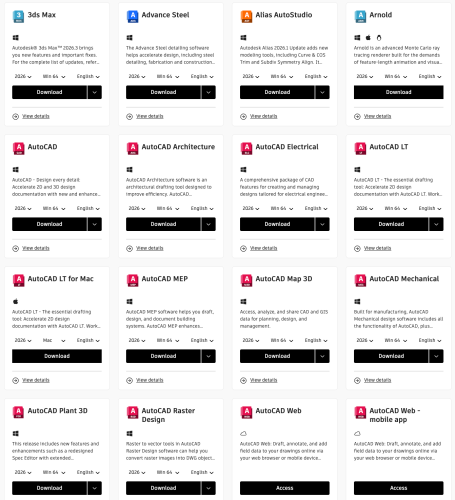
If the black button at the bottom of the software displays ‘Access’, please wait for the webpage to load; it will then change to ‘install’.