
SPSS V31 — Installation & Activation Guide
INSTALLATION & ACTIVATION · V31
Your SPSS setup, step by step.
Use the download and license assigned to your purchase. This guide covers SPSS V31 for Windows and macOS.

Open your SPSS order page
After payment, open the SPSS delivery link provided for your order. Check the order number, version and quantity. Your page is titled SPSS License & Downloads.
Find your V31 license card. SHOW KEY reveals the assigned product key and COPY copies it. Keep this private link and key confidential. You do not need to paste the key into a separate activation website: our order page uses the assigned key when you request your License Code.
Install SPSS V31
In your license card, choose DOWNLOAD FOR WINDOWS or DOWNLOAD FOR macOS, matching your computer and purchased option. These buttons use the current version-specific download addresses maintained by our support team.
- Download the installer completely. If it is a ZIP or RAR archive, extract it before running setup.
- On Windows, open the extracted installer and follow its setup prompts.
- On macOS, open the downloaded disk image or installer package and follow its setup prompts.
- Finish installation, then open SPSS and launch the License Wizard.
Copy the Lock Code
In the licensing wizard, locate Lock Code for this machine. Copy its complete value, including the hyphen. The example format is 4-266AF; use your own computer’s value, not this example.
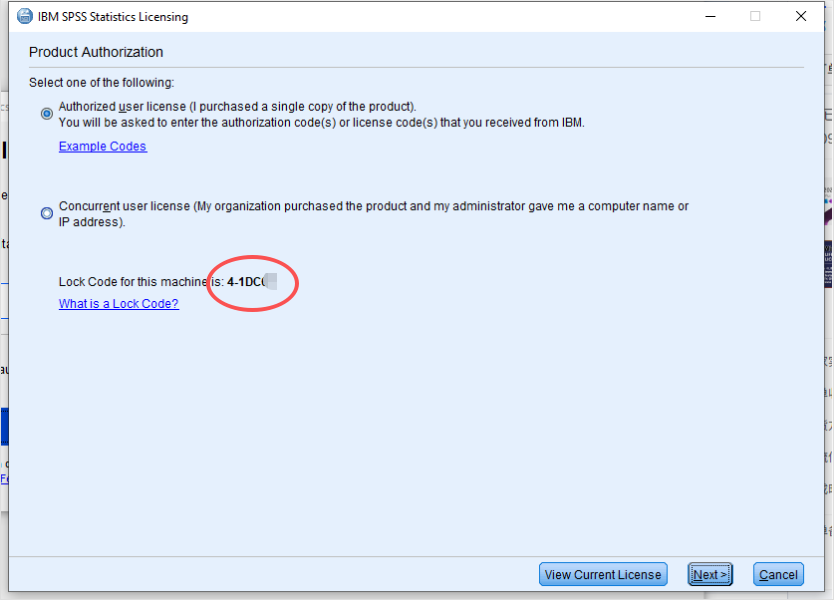
A Lock Code is not your product key or your License Code. Keep the wizard open while you return to your order page.
Get your License Code
- Return to the correct V31 license card on your order page.
- Under Get your License Code, paste your value into SPSS Lock Code.
- Check every character and confirm you selected the correct computer and license card.
- Click GET LICENSE CODE once and wait for the response.
- When Your License Code is ready appears, click COPY LICENSE CODE.
Add the result in SPSS
- Return to the SPSS License Wizard on the same computer.
- Select Authorized user license and click Next.
- Paste the returned License Code into the code-entry field. Click Add if shown, then Next.
- Follow the wizard to completion and check its authorization result. Restart SPSS if prompted.
Receiving a License Code is not itself confirmation that installation has activated; verify the result inside SPSS.
Troubleshooting
I purchased more than one license
Repeat the process using a separate assigned license card for each computer. Do not reuse one single-use key across multiple machines.
The Lock Code or License Code is rejected
Check the version, the selected license card and the Lock Code from that computer. Keep your order number and a screenshot of the exact error ready. Contact support before trying a different Lock Code.
My download or license is not ready
Keep your existing order. Contact support so we can check the download configuration or inventory allocation.