
Windows 10 & 11 — Activation Guide
KEYA1 · WINDOWS ACTIVATION GUIDE
Activate Windows, step by step.
One guide for our Windows 10 and Windows 11 Home / Pro products. The screenshots may look different on your PC, but the order-page delivery process is the same.
Claim your key on your private order page
- Open the order page displayed after checkout, or use the saved private link. Registered customers can also open the order through My Account.
- Once payment is confirmed, select Microsoft → Open activation.
- Under STEP 1 — Your Product Keys, find the Windows SKU that matches your purchase.
- Select CLAIM ACTIVATION and wait for the key check. When the key appears, use COPY KEY.
Open Windows Activation settings
- Windows 11: Settings → System → Activation.
- Windows 10: Settings → Update & Security → Activation.
Select Change product key / Change, enter the key from your order, and follow the prompts. If Windows shows that it is activated, you are finished — do not request a Confirmation ID unnecessarily.
If you need the Installation ID workflow
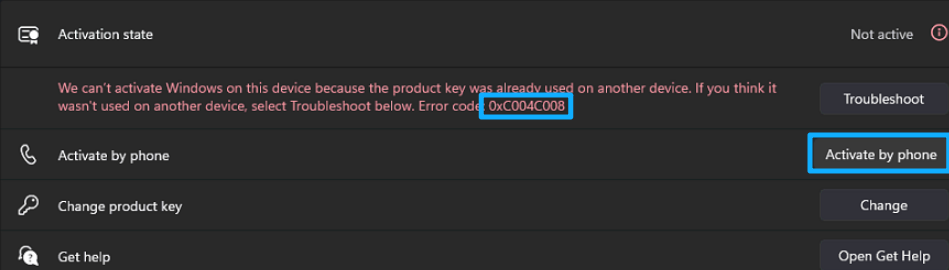
Depending on the Windows build, the option may be Activate by phone or Activate using the Product Activation Portal → Automated Help. Use the option actually shown on your PC.

Capture all nine Installation ID groups
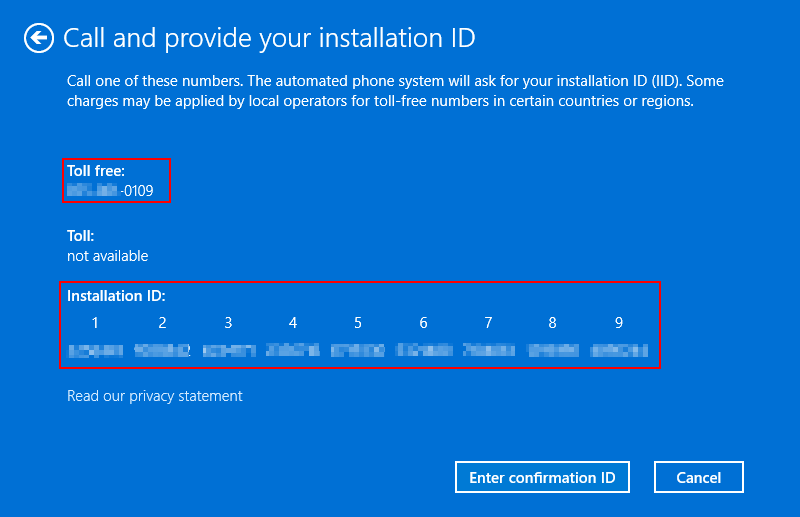
- If the wizard asks, select your country or region and continue.
- Find Installation ID and the groups numbered 1–9.
- Take a clear screenshot or photo with all nine groups visible. Avoid glare, blur and cropped digits.
- Keep this Windows activation window open while you return to your KEYA1 order page.
Get your Confirmation ID on the customer page
Use your existing private Microsoft activation page — not this public tutorial page.
Option A — Paste or upload the screenshot
- Go to STEP 2 — Get Your Confirmation ID.
- Paste the image using Ctrl+V, or select the screenshot-upload control and choose your photo.
- The page runs OCR and requests the Confirmation ID automatically. Wait for the result without refreshing or repeatedly submitting.
Option B — Type the Installation ID
- Enter all nine groups in the Installation ID field. Keep leading zeroes; do not include the labels 1–9.
- Check every digit, then select GET CONFIRMATION ID once.
On success, a confirmation message appears and the result is saved in Activation History with the Installation ID, Confirmation ID and time. You can return to the page to view the saved result.
If you cannot upload a readable screenshot, contact us privately with your order number and all nine Installation ID groups.
Enter the Confirmation ID in Windows
- Return to the activation window on the same computer.
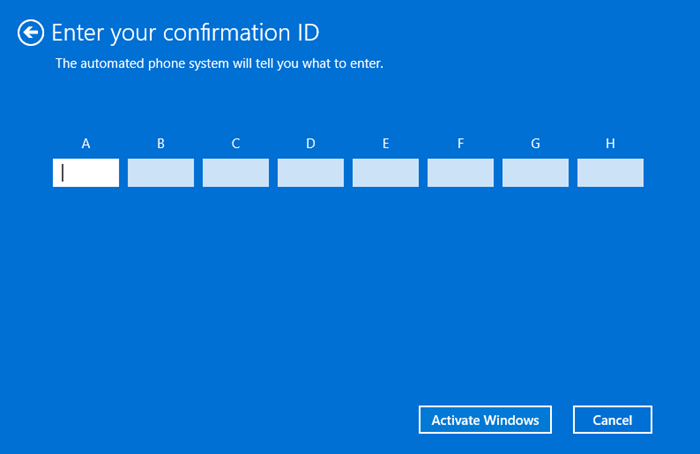
- Select Enter confirmation ID.
- Enter the returned groups into the corresponding fields A–H in order. Preserve leading zeroes and do not invent or remove digits.
- Select Activate Windows / Next, as shown in your wizard.
- Return to Activation settings and confirm Windows reports Active or Windows is activated.
Need help?
I cannot see either activation option
Windows builds and license channels differ. Send support a screenshot of your Activation settings and your order number. Do not change editions, install third-party activation tools or repeatedly replace keys to force this workflow.
The screenshot is not recognized or Windows rejects the result
Capture a clearer image or type the full ID. Check the installed edition and the Installation ID saved in history. If the issue remains, contact us with the exact error before using another activation allowance.
Where is my order link?
Use the private order page from checkout or My Account if the order is linked to your account. If you cannot find it, contact support using your checkout email and order number. Do not place another order just to recover a link.
Interface reference: Microsoft Windows activation guidance. KEYA1’s order-page service is separate from Microsoft’s Product Activation Portal. Screenshots supplied for illustration; actual menus can vary.