Please download it in a Windows browser. This software supports Windows 10/11
Step 2: Install Microsoft office professional plus2019
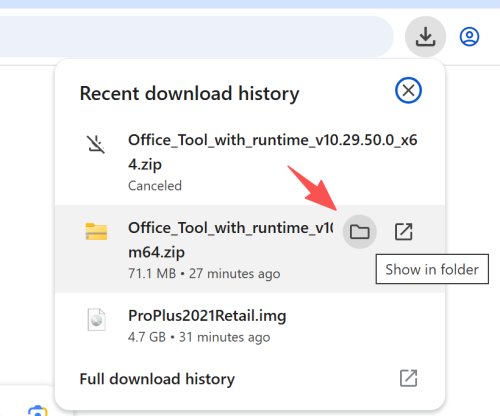
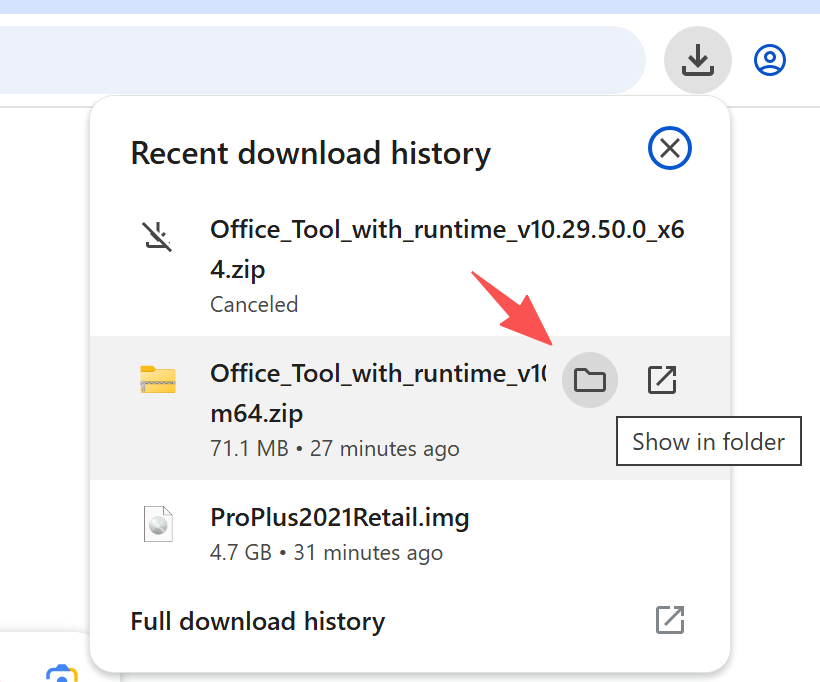
After the download finishes, select “Show in folder”
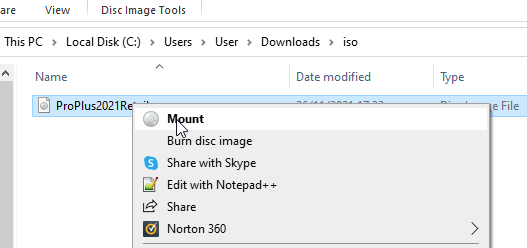
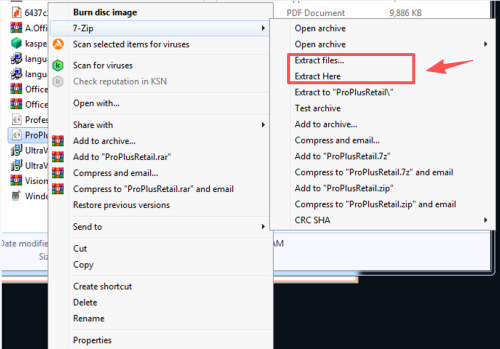
Mount or Extract it
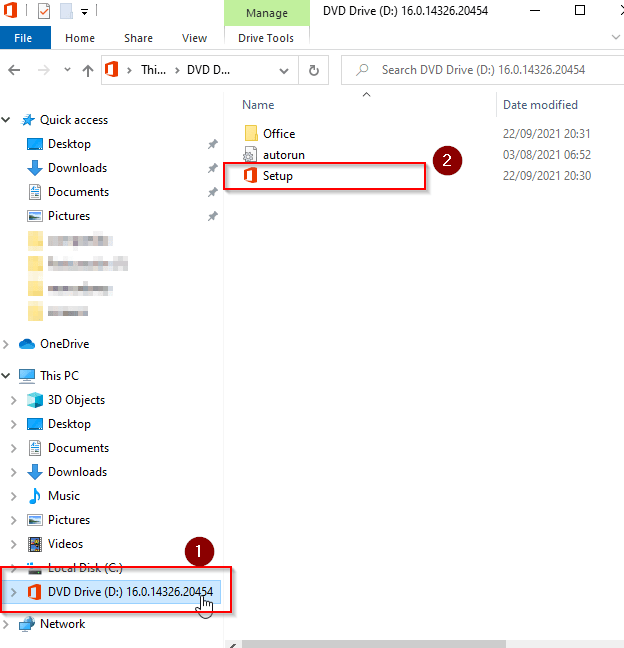
After doing this step, on the left side of this same window, you will see that an Office device appears under This Pc. Click on the new device (1), and then in the right side of the window you will see the content. Finally, double-click on the setup file. You can see it in the screenshot above as the number (2). This will start the installation process.
The installer will choose the best Office version for your computer. However, You can choose the 64-32bit installation accessing the Office folder.
Open any office software, such as:: Word, Excel, PowerPoint
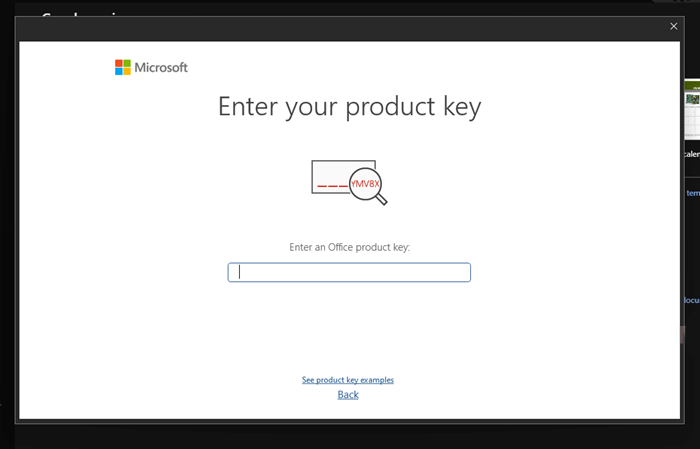
After some seconds a new window will popup asking to enter the product key. Enter product key supplied for your order and click the Activate Office button.
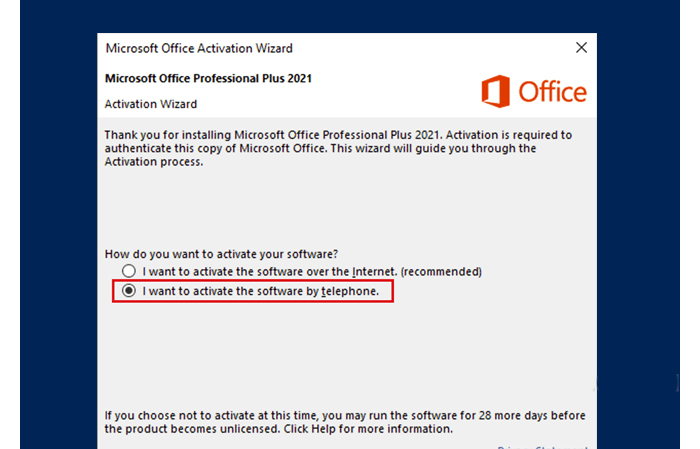
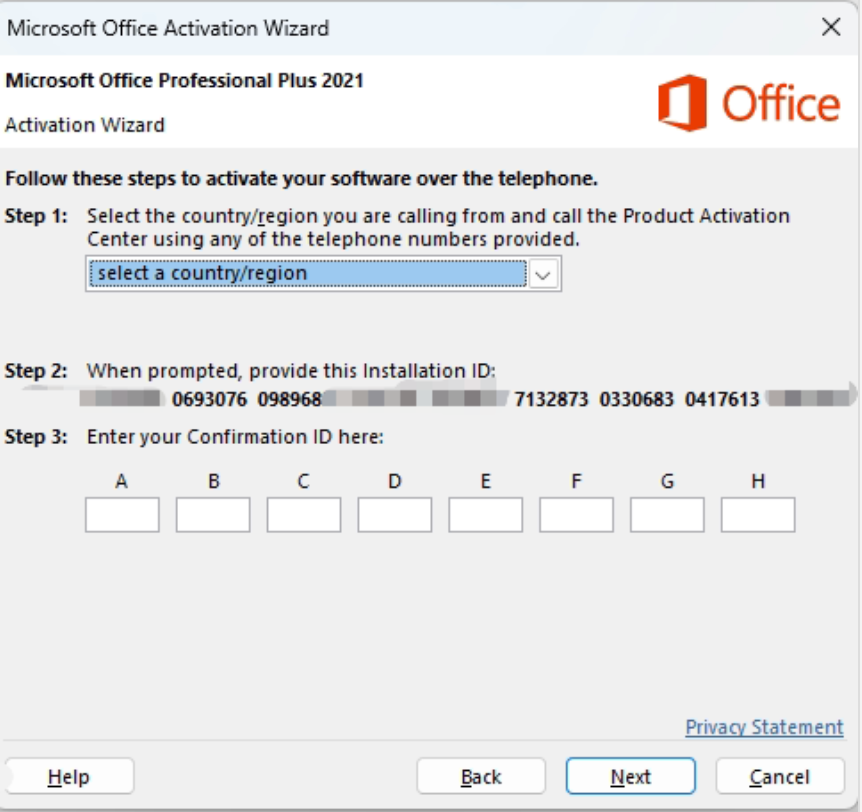
Please select I want to activate the software by telephone
Get your Confirmation ID on the customer page
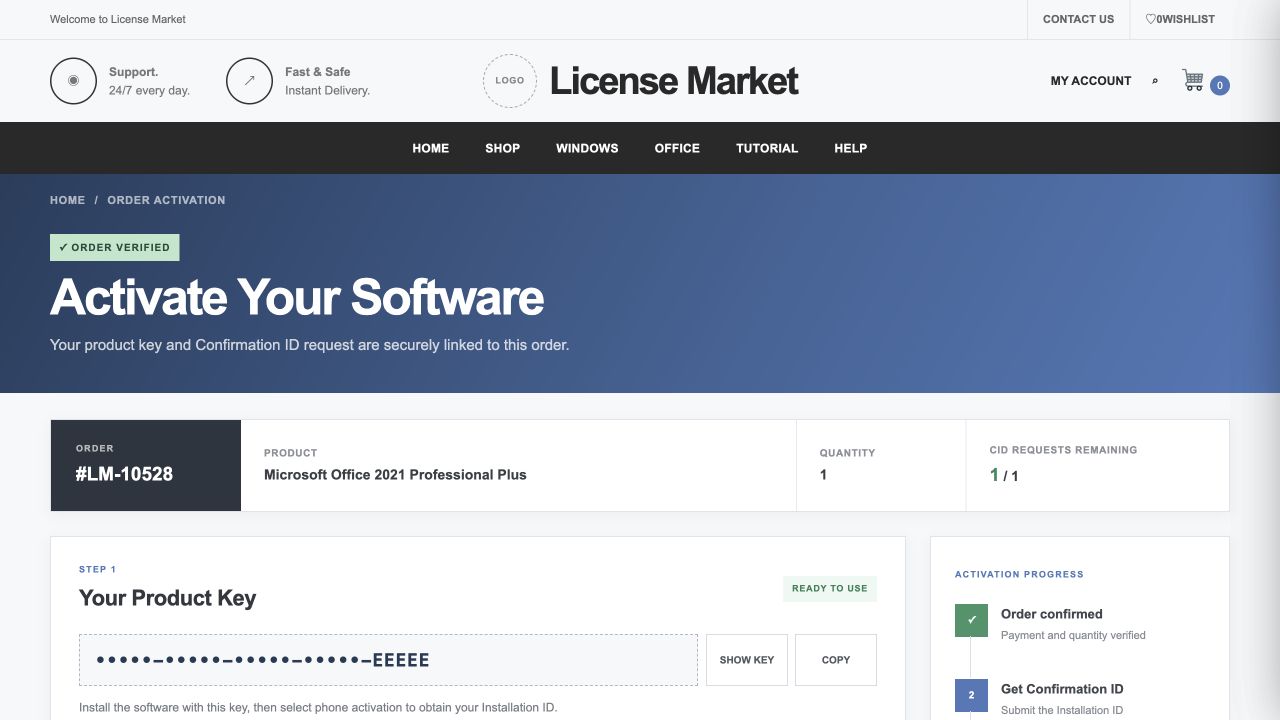
Use the private activation link supplied for your order. Check the product and quantity, then use SHOW KEY or COPY for your assigned key. Keep your key and private link confidential.
Current customer-page screenshot. The displayed order and key are demonstration values, not a usable license.
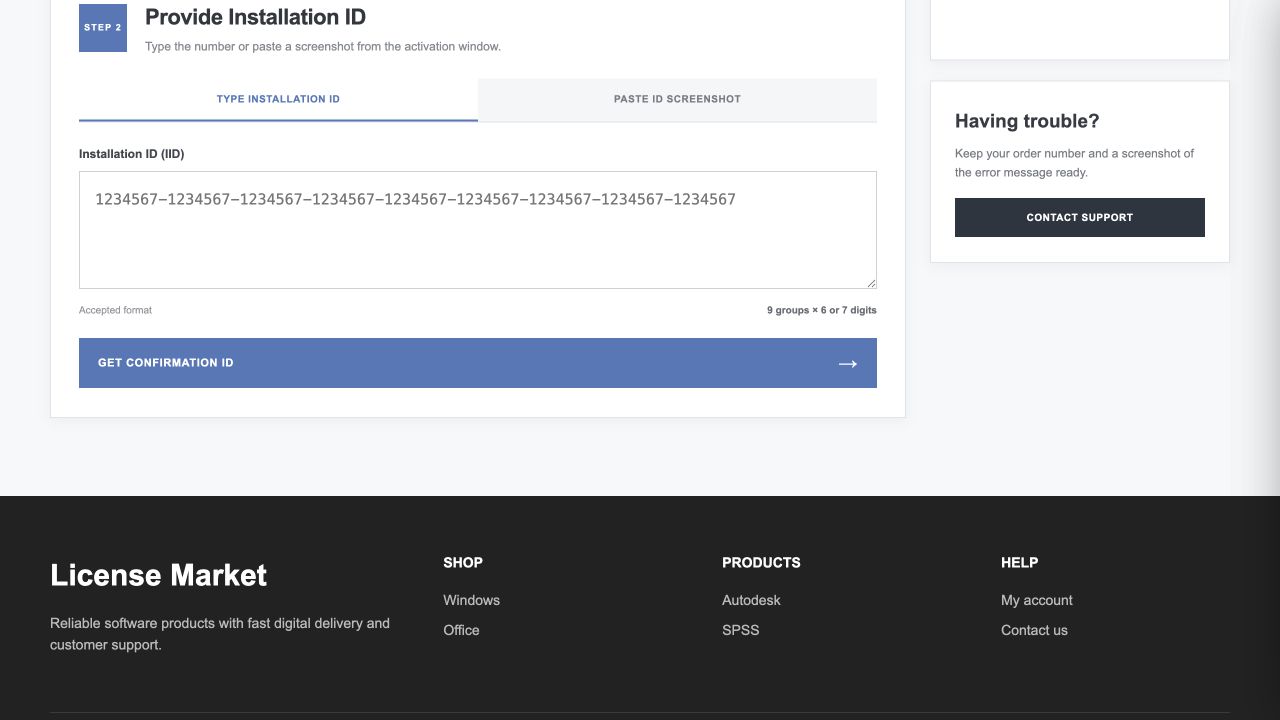
Keep the Office activation window open. Under Provide Installation ID, choose TYPE INSTALLATION ID. Enter all nine groups from your own Office window and check every digit. Do not enter your product key here.
Enter your own IID, then select GET CONFIRMATION ID.
Click GET CONFIRMATION ID once and wait. When a result is returned, enter its eight groups into fields A–H of the same Office activation window, six digits per group.
If the key or IID is rejected, contact support with the exact error. Do not repeatedly submit requests or use example numbers.
Enter the Confirmation ID returned on your customer page
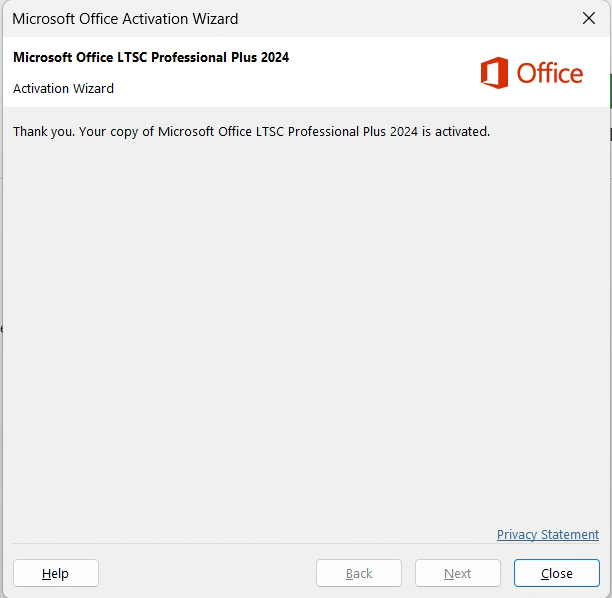
After Enter Click Next,Successfully activated!
That’s all. Now you have your Office completely installed and activated. Enjoy your Office suite.
Office 2021 Professional Plus
Microsoft Office Professional Plus2021
Please follow the steps below to install and activate your license.
Please download it in a Windows browser. This software supports Windows 10/11
Step 2: Install Microsoft office professional plus2021
After the download finishes, select “Show in folder”
Mount or Extract it
After doing this step, on the left side of this same window, you will see that an Office device appears under This Pc. Click on the new device (1), and then in the right side of the window you will see the content. Finally, double-click on the setup file. You can see it in the screenshot above as the number (2). This will start the installation process.
The installer will choose the best Office version for your computer. However, You can choose the 64-32bit installation accessing the Office folder.
Open any office software, such as:: Word, Excel, PowerPoint
After some seconds a new window will popup asking to enter the product key. Enter product key supplied for your order and click the Activate Office button.
Please select I want to activate the software by telephone
Get your Confirmation ID on the customer page
Use the private activation link supplied for your order. Check the product and quantity, then use SHOW KEY or COPY for your assigned key. Keep your key and private link confidential.
Current customer-page screenshot. The displayed order and key are demonstration values, not a usable license.
Keep the Office activation window open. Under Provide Installation ID, choose TYPE INSTALLATION ID. Enter all nine groups from your own Office window and check every digit. Do not enter your product key here.
Enter your own IID, then select GET CONFIRMATION ID.
Click GET CONFIRMATION ID once and wait. When a result is returned, enter its eight groups into fields A–H of the same Office activation window, six digits per group.
If the key or IID is rejected, contact support with the exact error. Do not repeatedly submit requests or use example numbers.
Enter the Confirmation ID returned on your customer page
After Enter Click Next,Successfully activated!
That’s all. Now you have your Office completely installed and activated. Enjoy your Office suite.
Office 2016 Professional Plus
Microsoft Office Professional Plus2016
Please follow the steps below to install and activate your license.
Please download it in a Windows browser. This software supports Windows 10/11
Step 2: Install Microsoft office professional plus2016
After the download finishes, select “Show in folder”
Mount or Extract it
After doing this step, on the left side of this same window, you will see that an Office device appears under This Pc. Click on the new device (1), and then in the right side of the window you will see the content. Finally, double-click on the setup file. You can see it in the screenshot above as the number (2). This will start the installation process.
The installer will choose the best Office version for your computer. However, You can choose the 64-32bit installation accessing the Office folder.
Open any office software, such as:: Word, Excel, PowerPoint
After some seconds a new window will popup asking to enter the product key. Enter product key supplied for your order and click the Activate Office button.
Please select I want to activate the software by telephone
Get your Confirmation ID on the customer page
Use the private activation link supplied for your order. Check the product and quantity, then use SHOW KEY or COPY for your assigned key. Keep your key and private link confidential.
Current customer-page screenshot. The displayed order and key are demonstration values, not a usable license.
Keep the Office activation window open. Under Provide Installation ID, choose TYPE INSTALLATION ID. Enter all nine groups from your own Office window and check every digit. Do not enter your product key here.
Enter your own IID, then select GET CONFIRMATION ID.
Click GET CONFIRMATION ID once and wait. When a result is returned, enter its eight groups into fields A–H of the same Office activation window, six digits per group.
If the key or IID is rejected, contact support with the exact error. Do not repeatedly submit requests or use example numbers.
Enter the Confirmation ID returned on your customer page
After Enter Click Next,Successfully activated!
That’s all. Now you have your Office completely installed and activated. Enjoy your Office suite.
Office 2024 Professional LTSC
Microsoft Office Professional Plus2024 LTSC
Please follow the steps below to install and activate your license.
Please download it in a Windows browser. This software supports Windows 10/11
Step 2: Extract the document
Click on your download content
Extract All
Be sure to extract the file, otherwise the installation will report an error
Step 3: Install Microsoft office LTSC professional plus 2024
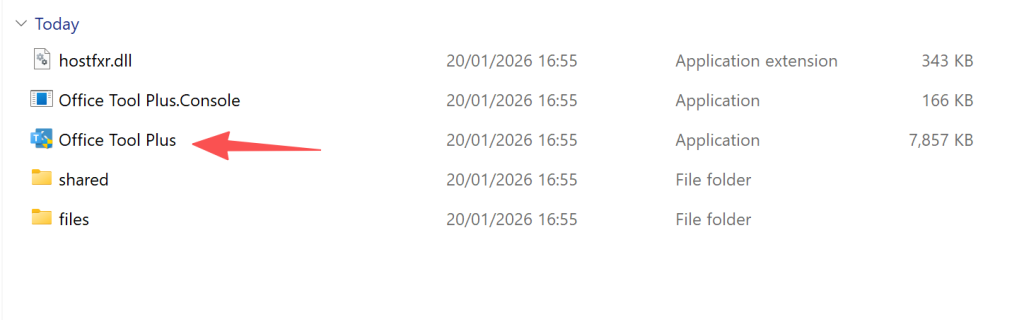
Open office tool plus
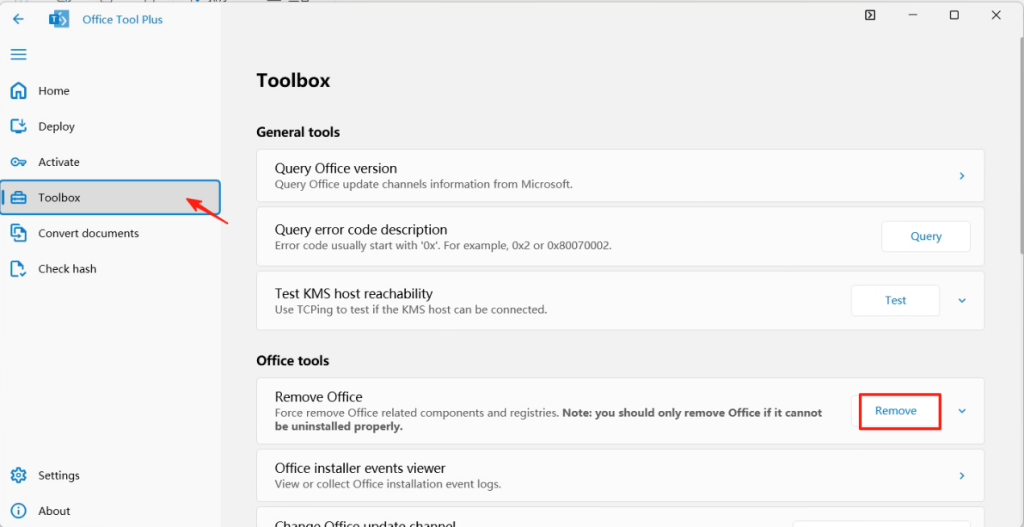
If you currently have other versions of Office, please be sure to remove them
Please ensure that you do not have any other version of Office, otherwise installation will not be possible
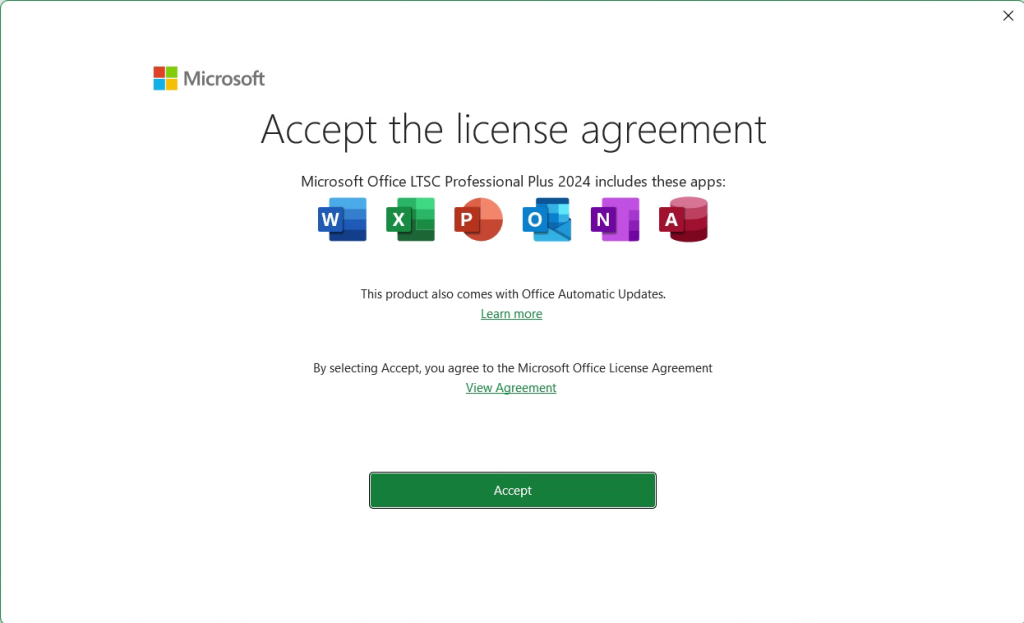
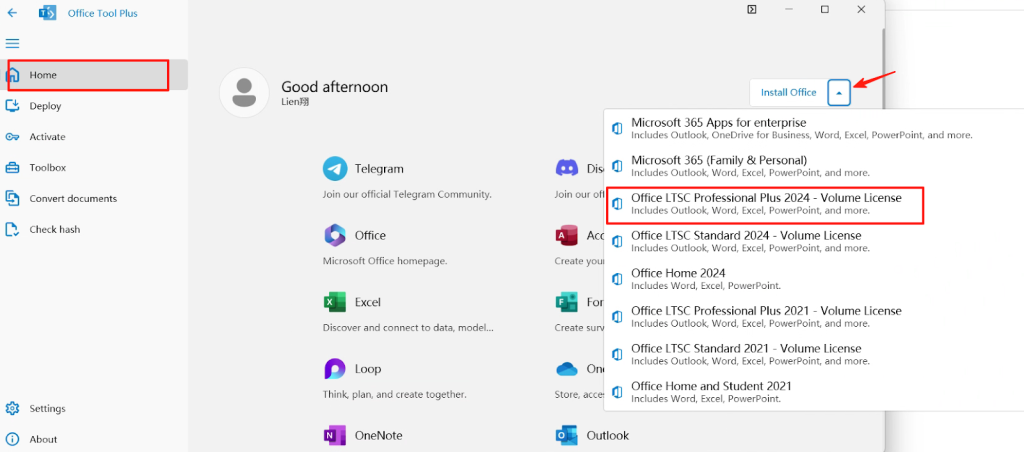
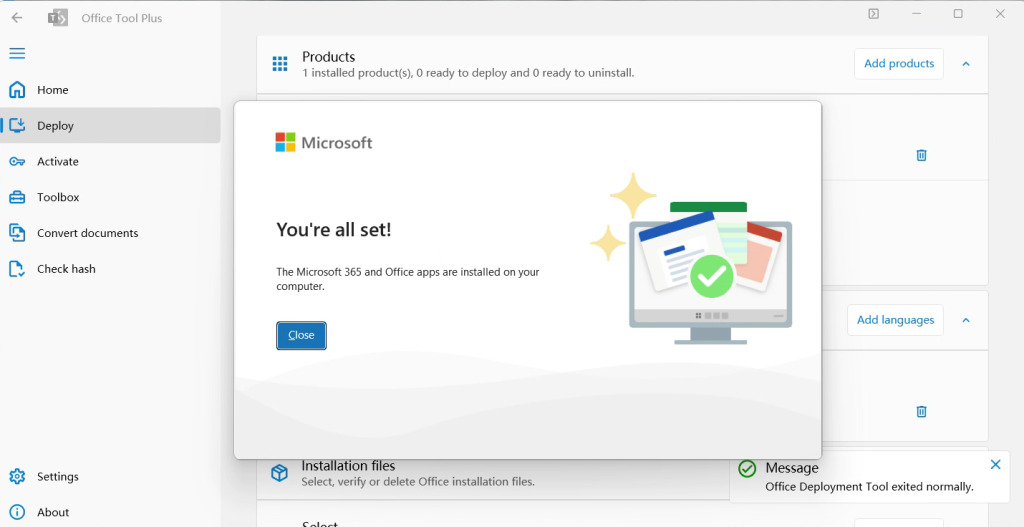
Click Home install Microsoft office LTSC professional plus 2024
Please install the corresponding version:Office LTSC Professional Plus 2024-Volume Licence
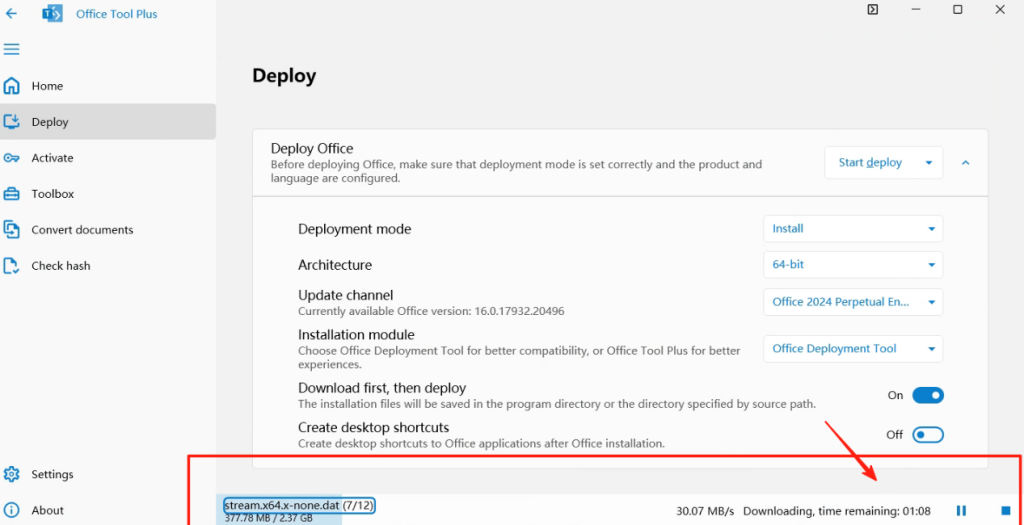
Waiting for download
Please be patient and wait for the download, do not operate arbitrarily
After the download is completed, it will be automatically installed
Step 4: Activation and Verification
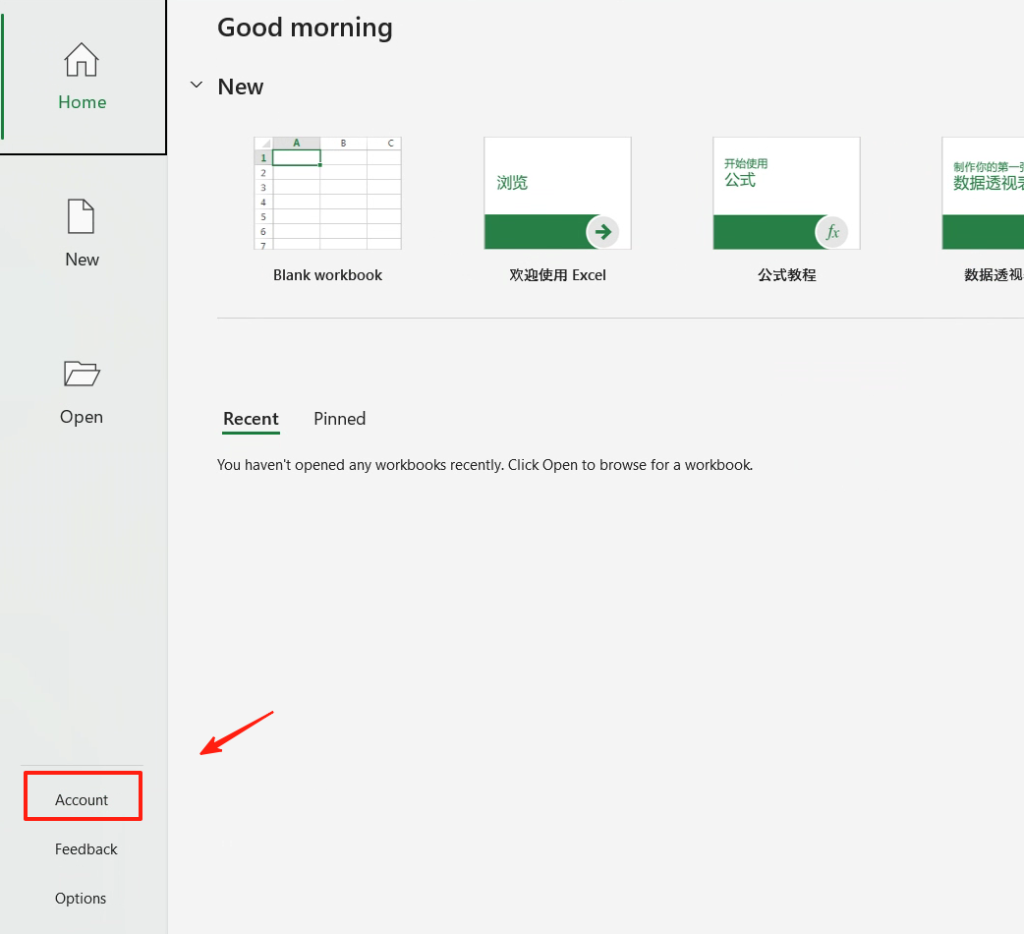
Open any office software, such as:: Word, Excel, PowerPoint
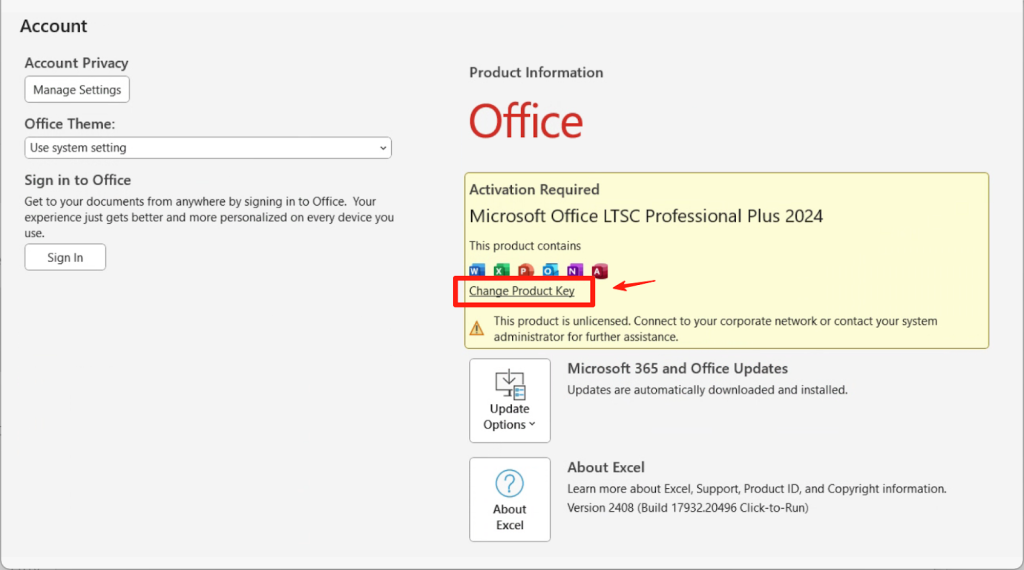
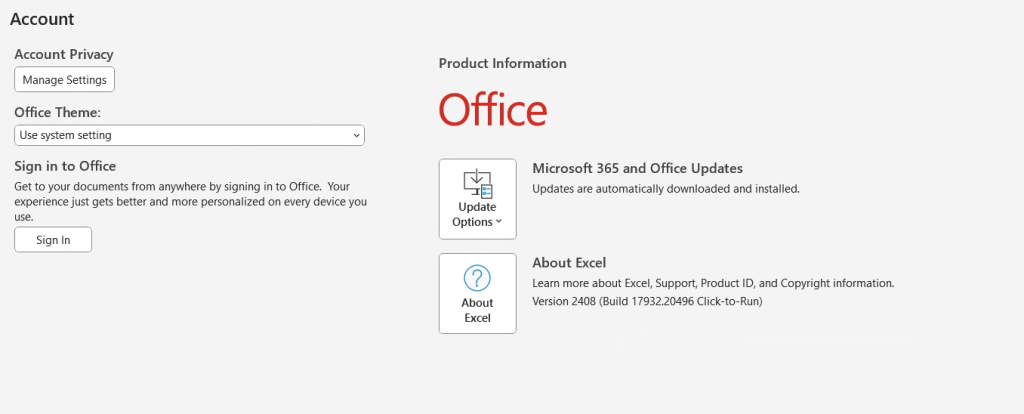
Click on File – Account
Change product key
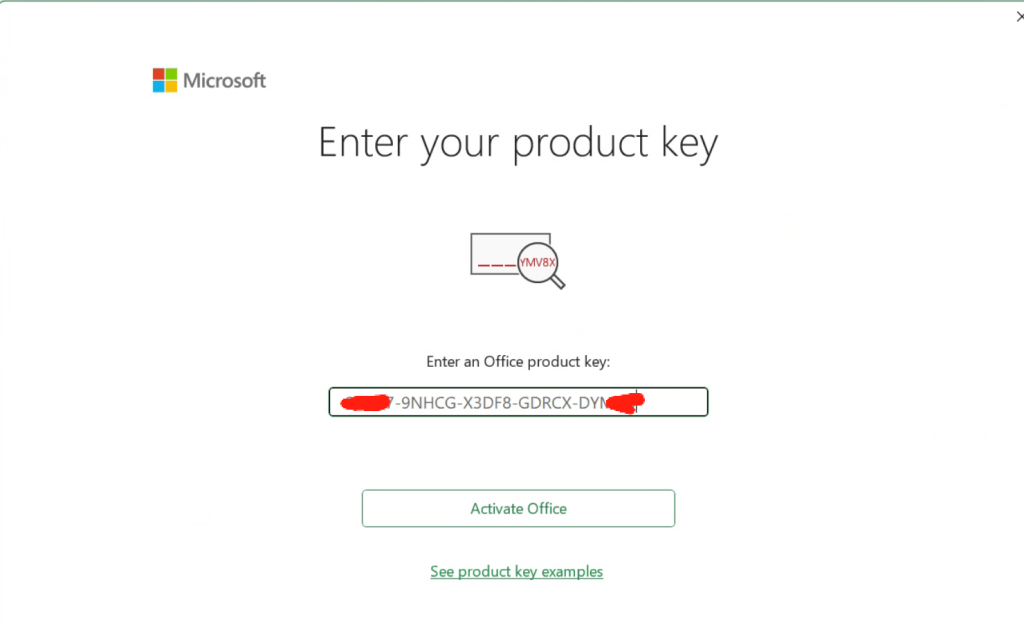
Enter the product key supplied for your order,and Click Active Office
After Active Office
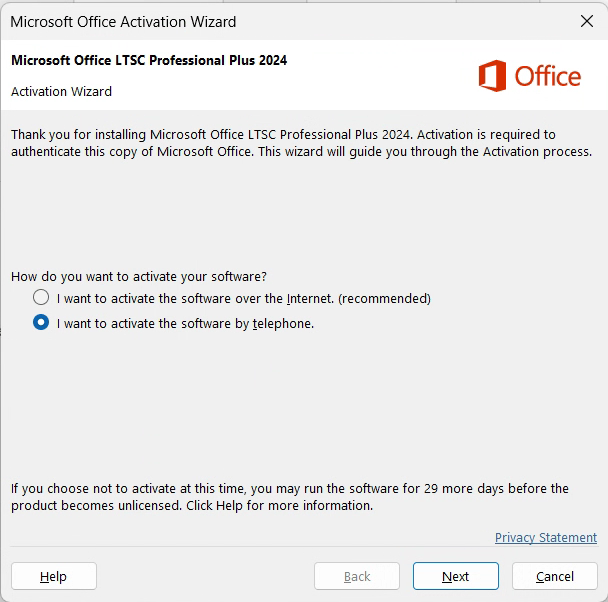
Please close the software and reopen it,Activation Wizard will pop up
Please select I want to activate the software by telephone
Get your Confirmation ID on the customer page
Use the private activation link supplied for your order. Check the product and quantity, then use SHOW KEY or COPY for your assigned key. Keep your key and private link confidential.
Current customer-page screenshot. The displayed order and key are demonstration values, not a usable license.
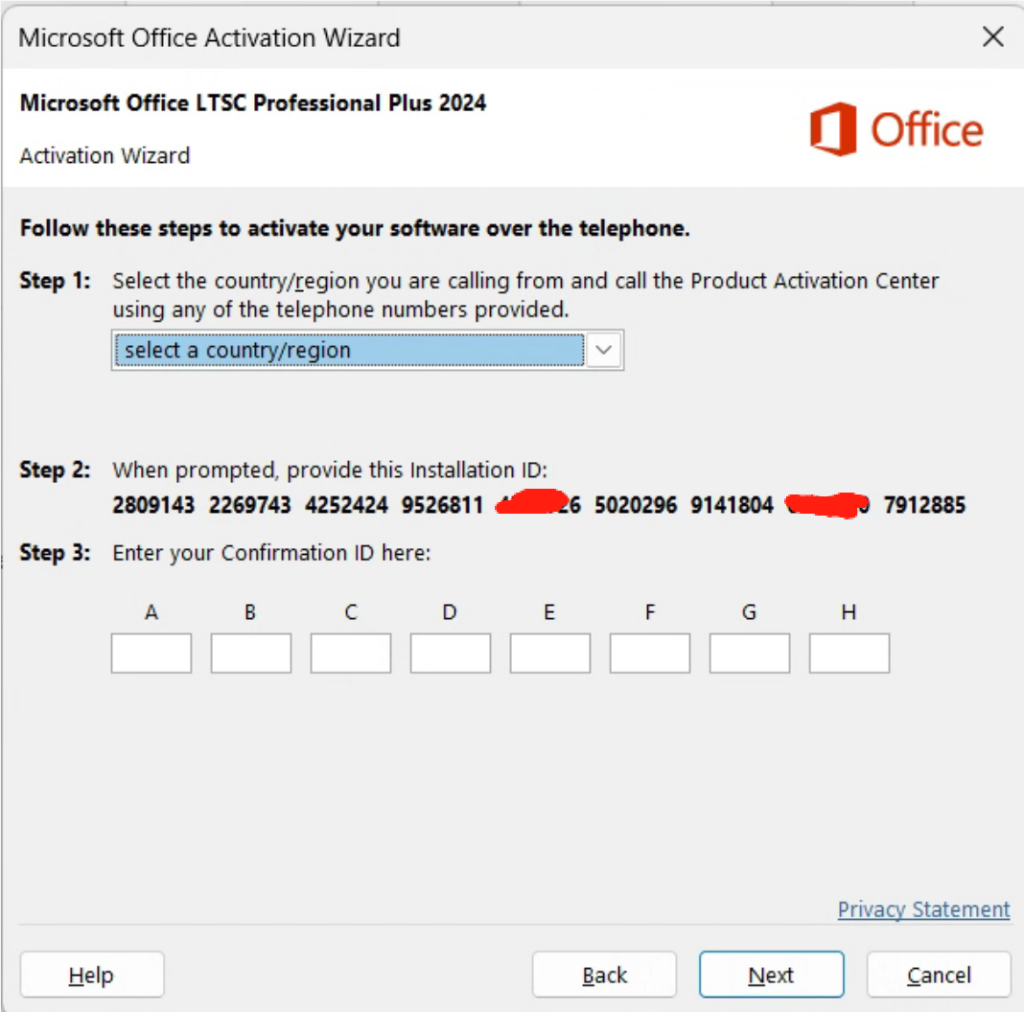
Keep the Office activation window open. Under Provide Installation ID, choose TYPE INSTALLATION ID. Enter all nine groups from your own Office window and check every digit. Do not enter your product key here.
Enter your own IID, then select GET CONFIRMATION ID.
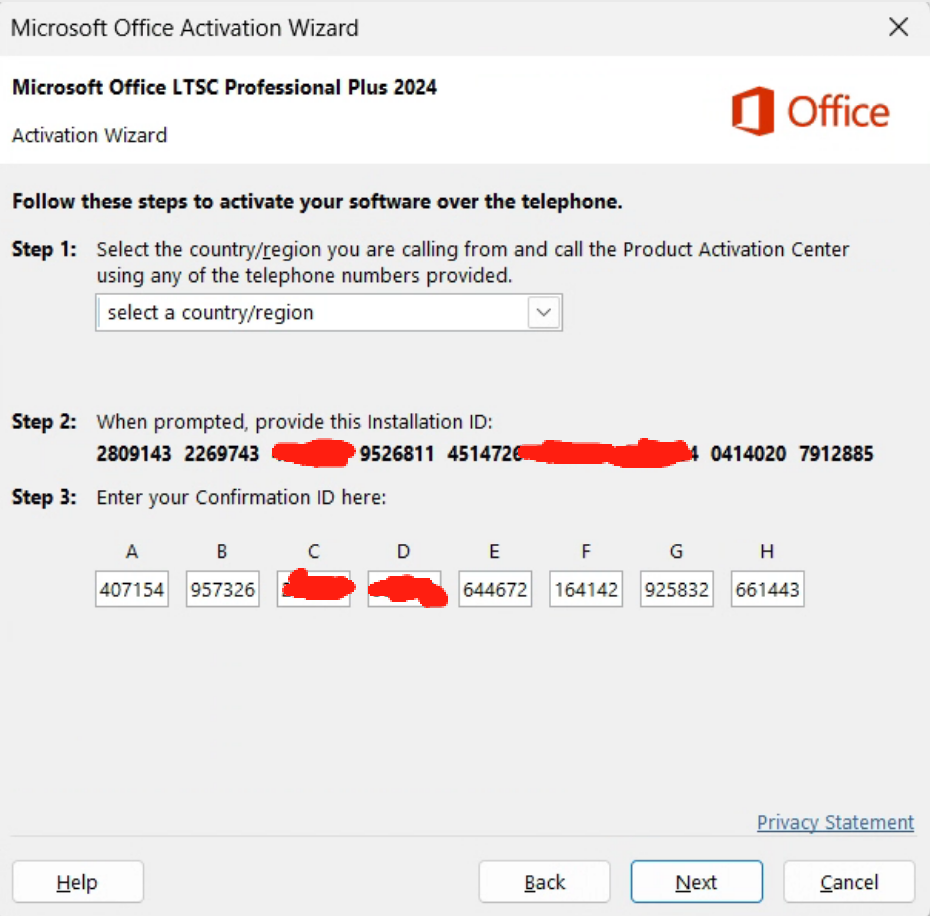
Click GET CONFIRMATION ID once and wait. When a result is returned, enter its eight groups into fields A–H of the same Office activation window, six digits per group.
If the key or IID is rejected, contact support with the exact error. Do not repeatedly submit requests or use example numbers.
Enter the Confirmation ID returned on your customer page
After Enter Click Next,Successfully activated!
That’s all. Now you have your Office completely installed and activated. Enjoy your Office suite.
AutoCAD
Submit your Autodesk account
Open the Autodesk activation link for your paid order. If you do not have an Autodesk account, register first. Submit the email you use to sign in, then check the ordered app and subscription term.
Wait for authorization
Your customer page shows the activation request status. During business hours on working days, activation is usually completed within 5–10 minutes. Once marked authorized, sign in with the same email and follow the installation steps below.
Autodesk AutoCAD
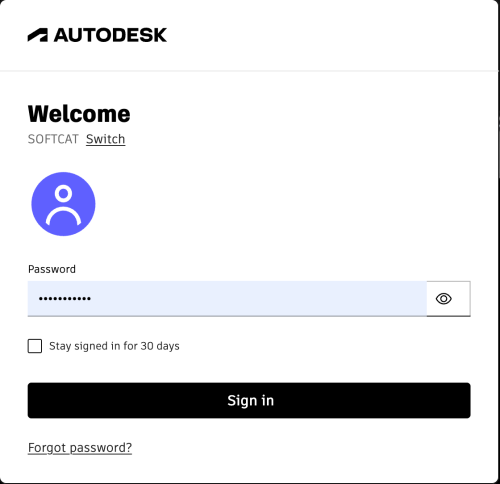
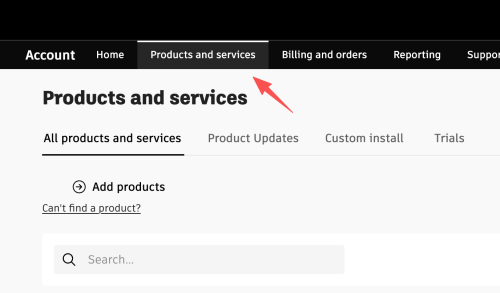
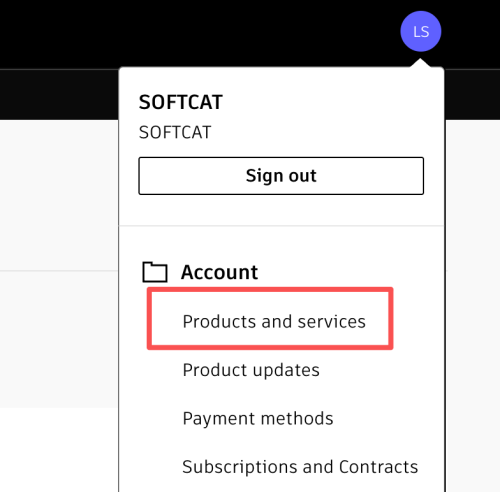
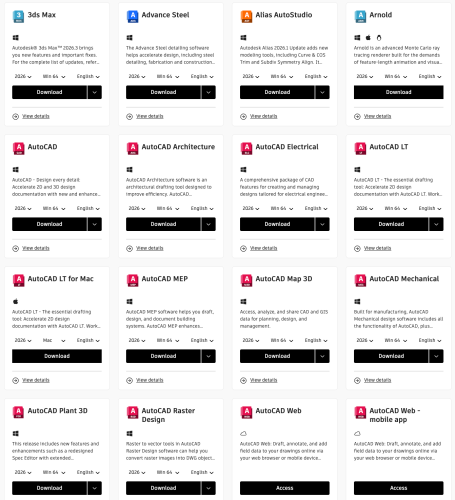
Log in to the Autodesk website to install the software.