
Office 2021 Professional Plus
INSTALLATION & ACTIVATION GUIDE
Office 2021 Professional Plus
Follow the installation steps, then complete the activation method for your purchased product.

Please follow the steps below to install and activate your license.
Step 1: Download the installation package
Click the button and download
Step 2: Install Microsoft office professional plus2021
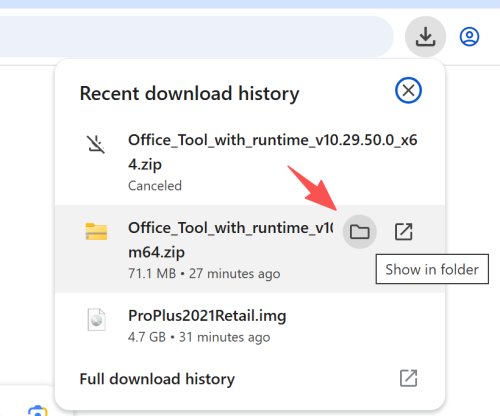
After the download finishes, select “Show in folder”
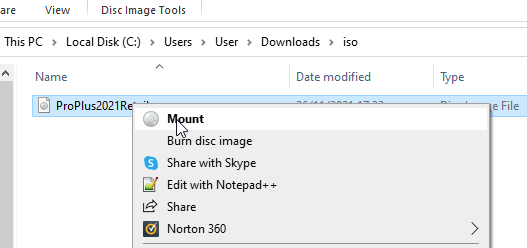
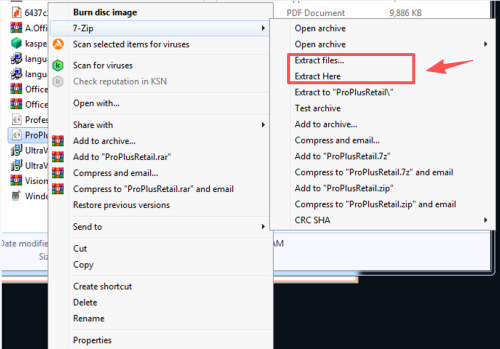
Mount or Extract it
After doing this step, on the left side of this same window, you will see that an Office device appears under This Pc. Click on the new device (1), and then in the right side of the window you will see the content. Finally, double-click on the setup file. You can see it in the screenshot above as the number (2). This will start the installation process.
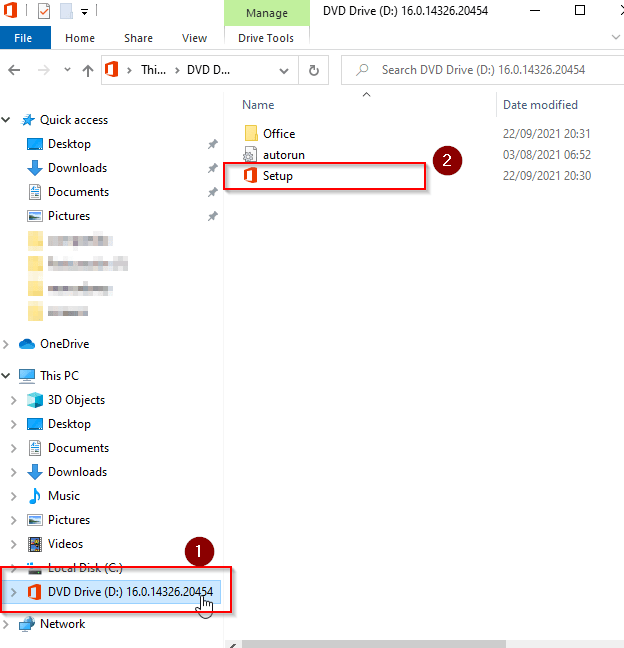
The installer will choose the best Office version for your computer. However, You can choose the 64-32bit installation accessing the Office folder.

Install 7-zip. 7-zip
Step 3: Activation and Verification
Open any office software, such as:: Word, Excel, PowerPoint
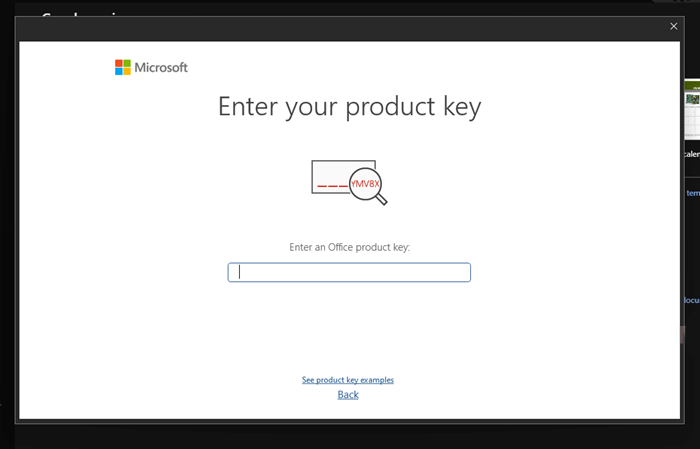
After some seconds a new window will popup asking to enter the product key. Enter product key supplied for your order and click the Activate Office button.
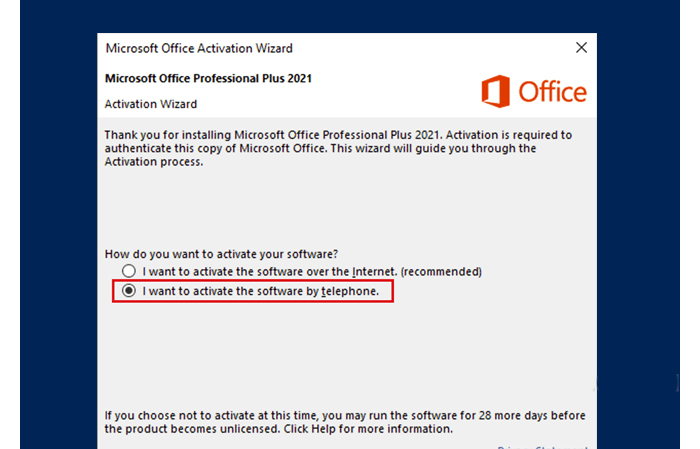
Please select I want to activate the software by telephone
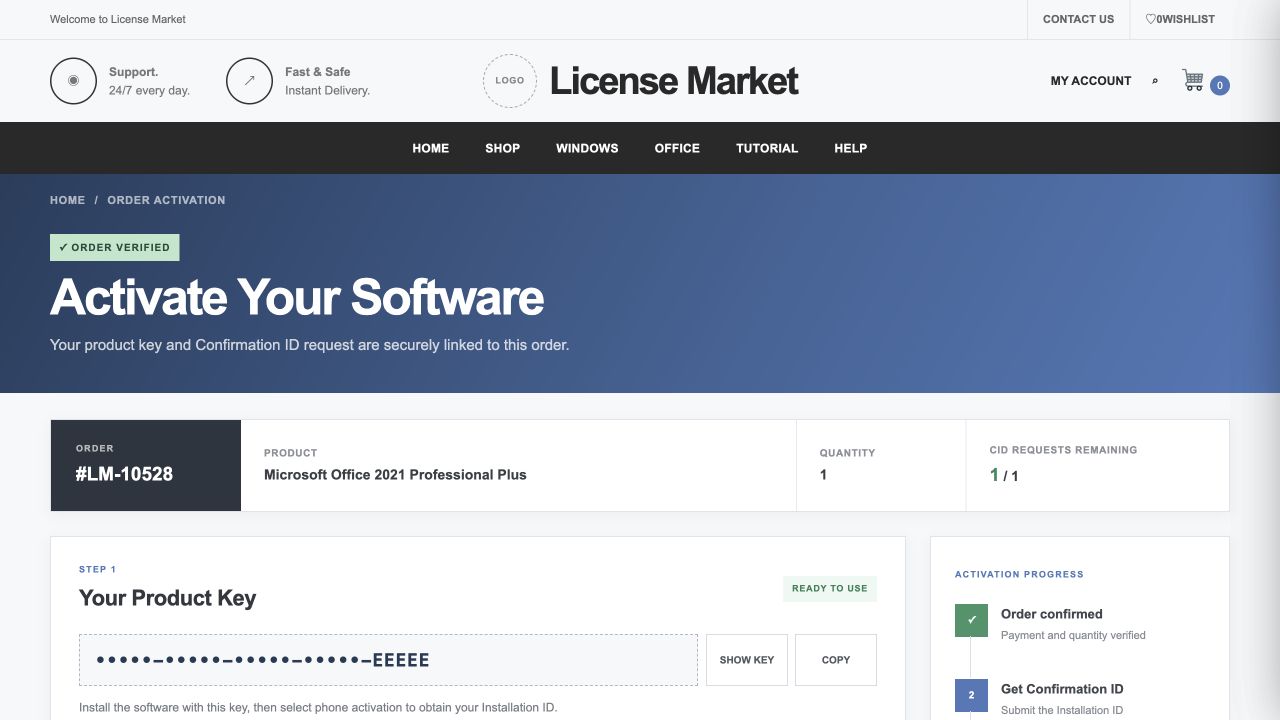
Get your Confirmation ID on the customer page
Use the private activation link supplied for your order. Check the product and quantity, then use SHOW KEY or COPY for your assigned key. Keep your key and private link confidential.
Keep the Office activation window open. Under Provide Installation ID, choose TYPE INSTALLATION ID. Enter all nine groups from your own Office window and check every digit. Do not enter your product key here.
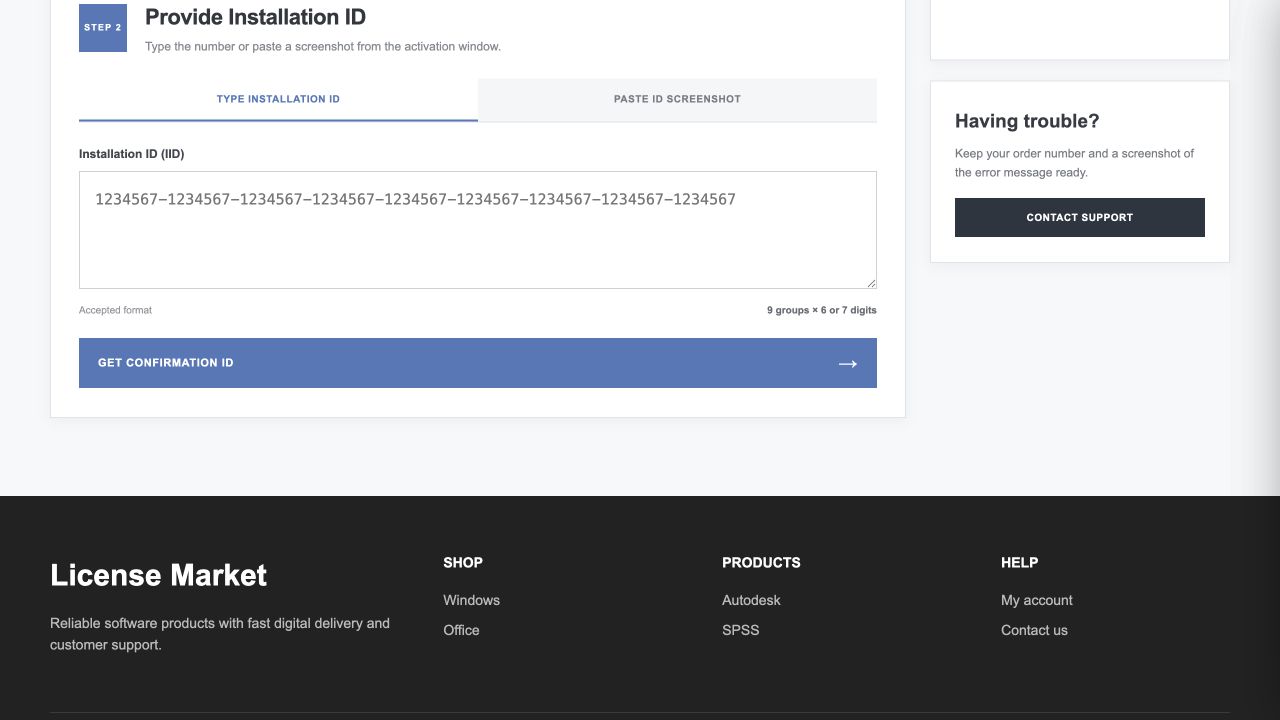
Click GET CONFIRMATION ID once and wait. When a result is returned, enter its eight groups into fields A–H of the same Office activation window, six digits per group.
If the key or IID is rejected, contact support with the exact error. Do not repeatedly submit requests or use example numbers.
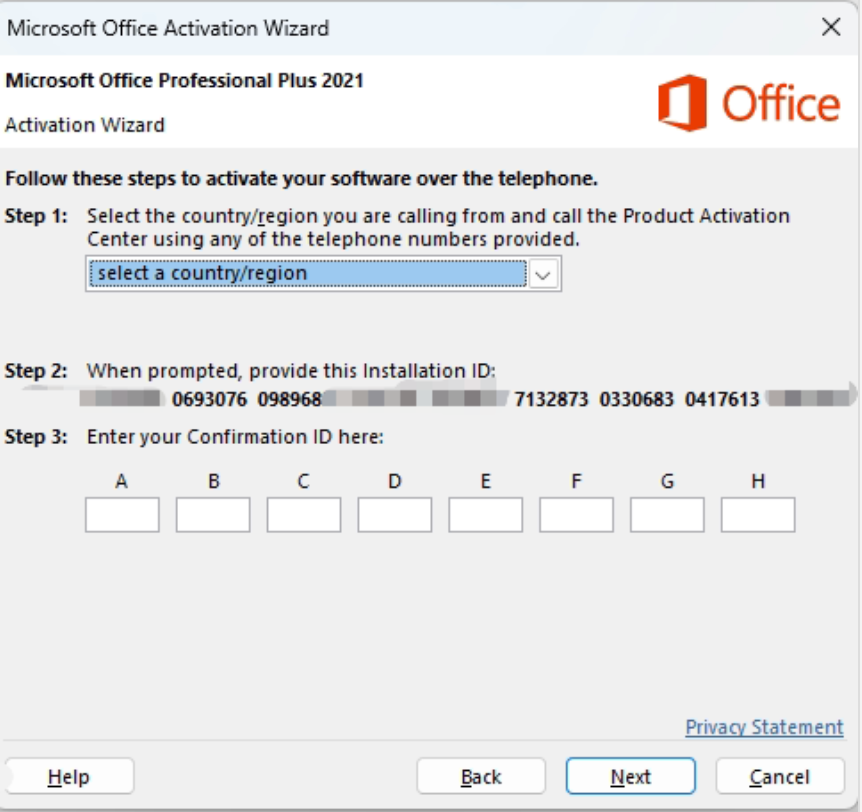
Enter the Confirmation ID returned on your customer page
After Enter Click Next,Successfully activated!
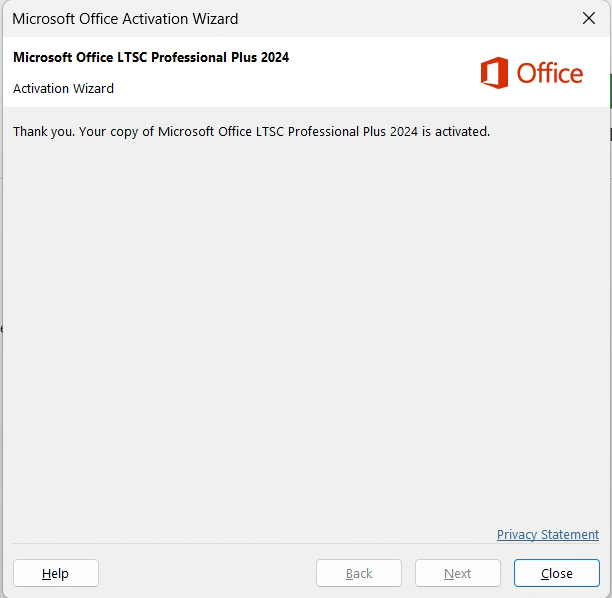
That’s all. Now you have your Office completely installed and activated. Enjoy your Office suite.